
Scam pages now go live faster than blocklists can catch them. Here's how to spot them.
AI has changed how scams are built. In recent weeks, our threat researchers flagged a new wave of fake Apple and Microsoft support pages: full-screen browser pages designed to make it look like the visitor's computer has been compromised. Our analysts believe they were built with AI, in minutes. This report walks through a sample of them: how they work, why traditional protection misses them, and the details that give them away.
Listen to this report
We're the research team behind ASURViO Shield. Every day, we watch for pages built to trick people at the exact moment they decide what to trust, and what we find shapes how Shield protects people. The pages in this report are a sample of what we flagged in recent weeks. Each one impersonated a company people rely on, each one claimed the visitor's computer was locked or infected, and each one ended in the same place: a phone number, a password box, or both.
These pages show where tech support scams are heading. Most web protection relies on blocklists, lists of sites already reported as dangerous, but AI lets scammers build a polished page in minutes and replace it just as quickly. A page that went live an hour ago isn't on anyone's list yet. Our analysis showed exactly that: when these pages first appeared, well-known antivirus products did not detect them. ASURViO Shield flagged each one in real time.
Below, we walk through this sample one page at a time so you can recognize this kind of page even when you're not protected, and so you can help a friend or family member who might not be.
The good news first: none of these pages can do what they claim. They switch the web browser into full-screen mode, which hides the address bar and tabs, so the warning looks like it's coming from your computer itself. Most people have no reason to think otherwise. But every one of them is a web page, and a web page can't scan your files, can't see your password, and can't lock your computer. All it can do is fill your screen and ask you to act. The whole attack depends on you acting.
The short version
Microsoft states plainly that its error and warning messages never include a phone number. Apple lists misleading pop-ups that say your device has a security problem among the scams to watch for, and asks people to contact it only through its official support channels. If a page tells you to call someone or enter your password to "unlock" your computer, close the page. Nothing bad has happened yet.
A copy of Microsoft Support, buried in fake errors
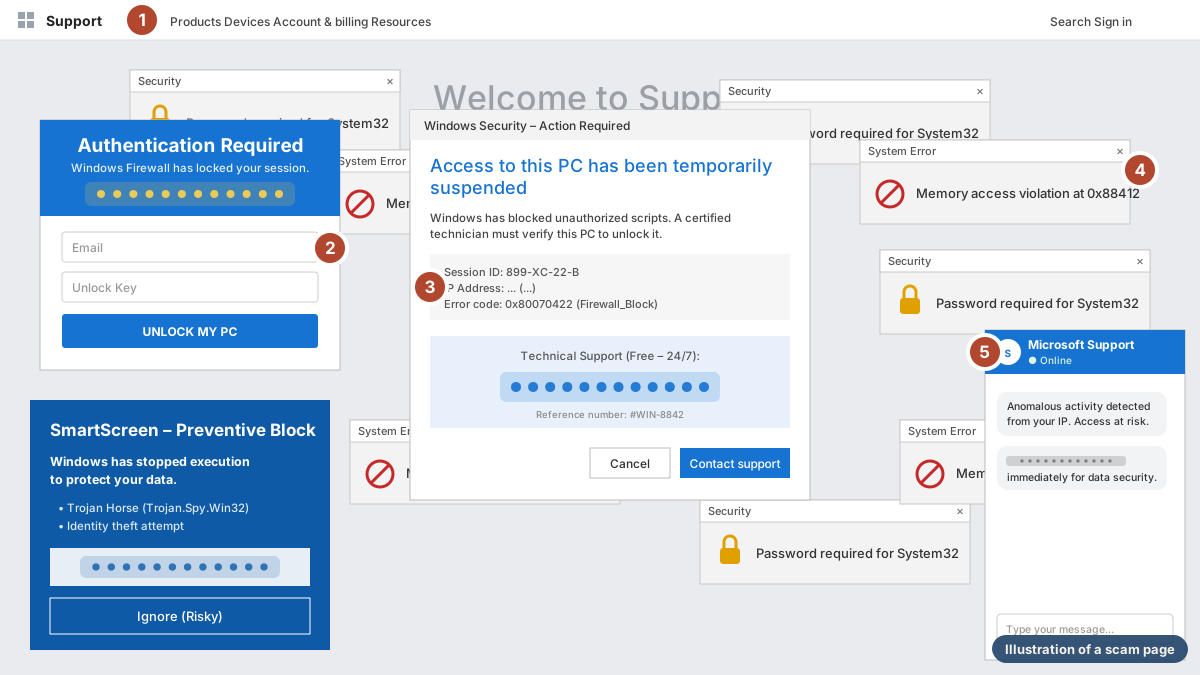
- A copied header. The navigation bar is lifted from Microsoft's real support site, so the page looks familiar at a glance. Because it fills the whole screen, there's no web address visible to show it isn't really Microsoft.
- An "unlock key" form. There is no such thing as a Windows Firewall unlock key. This box exists to collect your email address.
- Technical-looking details. The session ID, error code, and "Reference number" are made up. They're there to sound official, not to mean anything.
- A pile-up of errors. Dozens of "Memory access violation" and "Password required for System32" windows look like real Windows errors, but they're all part of the scam page. They're meant to overwhelm, not inform.
- A fake live chat. The "Microsoft Support, Online" chat is scripted. Every message ends the same way: call the number.
This was the busiest of the pages, and that's deliberate. When a screen fills with overlapping warnings, most people stop reading carefully and start looking for the quickest way to make it stop. The page offers exactly one: a phone number, repeated five times, in the center dialog, the left panel, the SmartScreen box, the chat, and the button labeled "Call."
Notice the option on the lower left that reads "Ignore (Risky)." That label is the scam trying to talk you out of the one safe choice. Ignoring this page is not risky. It's the right move.
Because the page covers the entire screen, it can feel as if the whole computer has been taken over. It hasn't. Everything you see is a single web page, and pressing Esc will usually shrink it back into a normal browser window so you can close it.
An Apple "Smart Protection Center" that doesn't exist
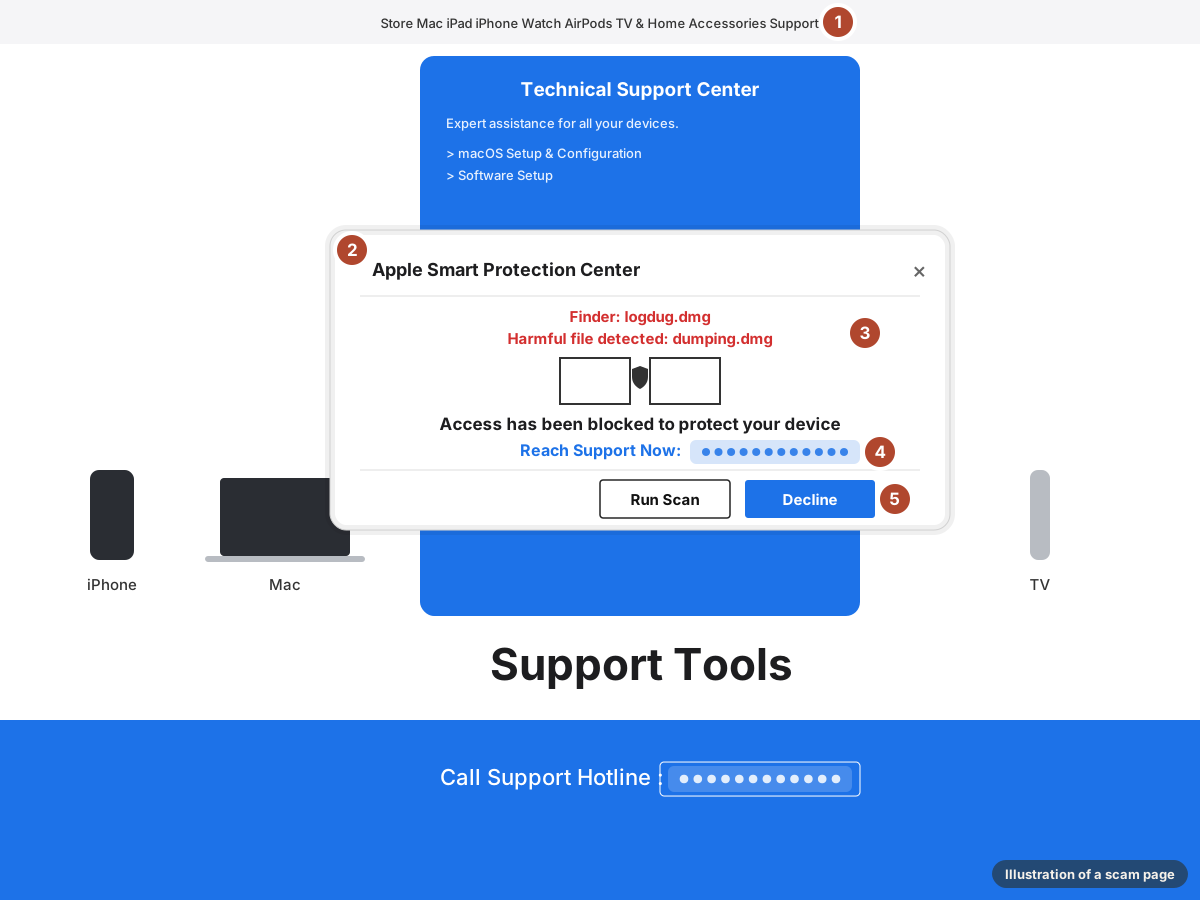
- A borrowed look. The top bar and product photos are copied from Apple's website to make everything below them feel legitimate.
- A made-up product. Apple has no "Smart Protection Center." The name is invented to sound like a real Apple service.
- Nonsense file names. "logdug.dmg" and "dumping.dmg" are invented. The warning is made to look as if your Mac found them, but it's a web page, and a web page has no way to look at your files.
- A phone number as the fix. The number appears in the dialog and again in a banner along the bottom. Apple warns about pop-ups that claim your device has a security problem, and asks you to reach it through its official support channels instead.
- Two buttons, one outcome. "Run Scan" and "Decline" are both part of the scam. Neither is a real choice, so don't click either. Press Esc and close the page instead, as described below.
This page is quieter than the Microsoft one, and that makes it more convincing to some people. It doesn't scream. It calmly tells you that "access has been blocked to protect your device" and offers a friendly hotline. The tone is borrowed from the real Apple, which is exactly the point.
Nothing on this page says it's a website. It's designed to look like your Mac itself is raising the alarm, and in full-screen mode there's no address bar to give it away. So the tell has to be something else. Here, it's the combination of a scary claim and a phone number: the page says it found harmful files and tells you to call for help. Apple lists pop-ups like this among the scams to watch for. A genuine problem with your Mac won't come with a hotline to call.
A fake Windows lock screen that wants your password
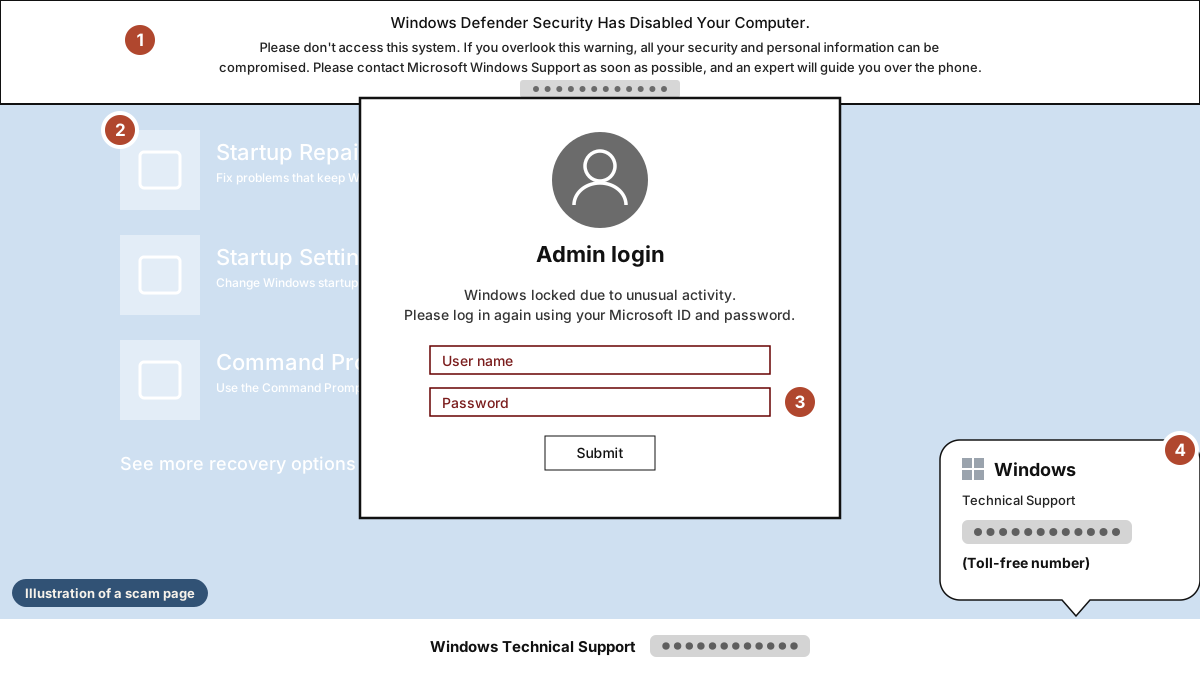
- A warning in a banner. Windows Defender doesn't "disable" computers, and its real alerts appear in the Windows Security app, not in a banner with a phone number.
- An imitation recovery screen. The faded Startup Repair and Command Prompt tiles are a picture of the real Windows recovery menu, placed behind the form to make it look like part of your system.
- A password box that isn't what it seems. This is the dangerous part. It looks like Windows is asking you to sign in, but the box is part of the web page, and anything typed here goes to the scammers. Windows doesn't put support phone numbers around its sign-in screen.
- A "toll-free" number. The same number appears three times. Being toll-free doesn't make it official.
This page combines both tactics. It still wants you to call, but it also asks directly for your Microsoft account user name and password. For many people, that one account unlocks email, cloud files, saved passwords, and sometimes payment details. Handing it over gives the scammers a lot more than a phone call would.
Because the page fills the screen, there's no browser around it to give it away. Here's a simple test that doesn't require knowing how these pages work: press Esc. A web page pretending to be your computer will usually drop out of full-screen mode and shrink back into a browser window, revealing what it really is. Your computer's real sign-in and security screens won't do that.
What these pages have in common
These pages came from different places and borrowed different brands, but they share the same few tells. Once you know them, you'll recognize the next one no matter whose logo it uses.
- They take over your whole screen. That's deliberate. In full-screen mode, the browser's address bar and tabs disappear, so the page looks like part of your computer, and most people have no reason to suspect they're looking at a website. If a warning suddenly fills your screen while you're browsing, press Esc. If it shrinks into a browser window, it was a web page all along.
- They claim to have scanned your computer. These pages say they found viruses, harmful files, or suspicious activity. However convincing it looks, it's a web page, and a web page can't scan your files, detect a virus, or lock your system.
- They give you a phone number. Microsoft says its real warnings never include one, and Apple tells customers to use only its official support channels. When you need help, go to the company's website yourself or use the number on your bill or card.
- They ask for a password in the wrong place. Signing in to "unlock" your computer through a web page is never real. Your password belongs in your device's own sign-in screen or on the company's real website, which you open yourself.
- They rush you. Countdown timers, repeated warnings, and phrases like "immediately" or "as soon as possible" are there so you won't stop and think. Real security problems can wait the minute it takes to check.
How to close one of these pages
Because these pages take over the whole screen, the usual close button may be hidden. They may also keep popping back up. Here's how to get out.
- Press Esc to leave full-screen mode, then close the tab.
- If the browser won't close, force it to quit. On Windows, press Ctrl + Shift + Esc to open Task Manager, select your browser, and choose End task. On a Mac, press Command + Option + Esc, select your browser, and choose Force Quit.
- When you open your browser again, don't restore the previous tabs if it offers to.
That's it. If you didn't call or type anything in, you're done. Visiting one of these pages doesn't infect your computer on its own.
If you already called or typed something in
It happens, and it doesn't mean you did anything foolish. These pages are built by people who do this full time. What matters is acting quickly and calmly.
- Hang up if you're still on the call. You don't owe the caller anything, and you don't need to explain.
- If you let someone connect to your computer, disconnect it from the internet, uninstall any remote-access program they had you install, and run a scan with your regular security software.
- If you entered a password, change it right away from a different device you trust, and turn on two-step verification. Change it anywhere else you've used the same password.
- If you paid anything, call your bank or card provider using the number on the back of your card. The sooner you call, the better the chance of stopping or reversing the charge.
- Report it. In the U.S., you can report tech support scams to the FTC at ReportFraud.ftc.gov and to the FBI's Internet Crime Complaint Center at ic3.gov. Reports help investigators connect cases and take these operations down.
Be wary of anyone who contacts you afterward offering to help you get your money back. Follow-up "refund" calls are a common second round of the same scam.
Why this is happening
How these scams work
None of this is new. Tech support scams have been around for well over a decade, and fake warnings like these have been a staple of them from the start. What has changed is how quickly the pages can be made. A convincing fake used to take real effort to build. Now AI tools can produce one in minutes, and scammers can replace it just as fast when it's blocked.
Security researchers call these tech support scams, and the pages themselves are sometimes called browser lockers. People usually land on them by accident: a mistyped web address, a bad ad on an otherwise ordinary site, a link in a text or email, or a redirect from a site that has been compromised.
Every page in this report works the same way. It switches the web browser into full-screen mode, which hides the address bar, the tabs, and the usual ways out. What's left looks like the computer itself is raising the alarm: a locked system, a virus warning, a security alert. The page borrows the look of a trusted brand so the warning feels official, and it may pile up error windows, play a warning sound, or make itself hard to close. Then it gives you one way out: call "support," or sign in to "verify" yourself.
On the other end of the phone is not Apple or Microsoft. It's someone who will try to talk you into letting them connect to your computer, buying a "repair" or "protection plan," paying with gift cards or a wire transfer, or reading out a code sent to your phone. If the page collects a password instead, that password goes straight to the people running it.
The cost, by the numbers
Pages like these are the front door to one of the most costly kinds of fraud in the United States. The FBI's Internet Crime Complaint Center tracks losses that Americans report each year, and tech support scams have climbed steadily up that list.
- $2.13 billion
- reported lost to tech and customer support scams in 2025, the third-largest loss of any fraud type the FBI tracks
- 46% more
- than the $1.46 billion reported in 2024
- 47,794
- complaints filed about tech support scams in 2025, averaging about $44,700 in losses per complaint
- $1.04 billion
- of those losses reported by people aged 60 and over, nearly half of the total
Source: FBI Internet Crime Complaint Center, 2025 Internet Crime Report and 2024 Internet Crime Report. Figures reflect only losses reported to the FBI.
Those numbers only count people who filed a report, and many victims never do, so the real total is almost certainly higher. They also point to something encouraging: nearly every one of those losses started with a moment like the ones shown above, where someone could still have closed the page. Recognizing the page is the most effective protection there is.
AI is making these pages faster to build
Pages like these used to take real effort to put together. The FBI has warned that generative AI reduces the time and effort criminals need to deceive their targets. Among the uses it lists: generating content for fraudulent websites and adding AI chatbots to them.
A recent case shows how convincing this has become. In July 2026, the FBI warned that scammers were using AI-generated videos of a senior FBI leader to steer people to a spoofed copy of the FBI's own complaint website, built to look like the real one. If scammers can convincingly copy the FBI, copying a tech company's support page is easy.
The FBI has also started counting the damage. Its 2025 Internet Crime Report was the first to track complaints involving AI.
- 22,364
- complaints involving AI reported to the FBI in 2025, the first year it tracked them
- $893 million
- in reported losses from those complaints, including about $19.5 million from tech support scams
Source: FBI Internet Crime Complaint Center, 2025 Internet Crime Report. Figures reflect only losses reported to the FBI.
It's worth being clear about what AI changes and what it doesn't. It makes these pages cheaper to produce and more polished, but the trick underneath is the same: urgency, fear, and a request to act. A page built with AI still has to get you to call a number or type a password.
Our analysts believe the pages in this report were built with AI. They show the hallmarks: convincing copies of real brands' designs and, on one page, a scripted support chat of the kind the FBI says criminals now build with AI. The good news is that the tells in this post work no matter how a page was made.
Protection built for AI-driven scams
A blocklist can only protect you from a page someone has already found, reported, and confirmed. Every new scam page gets a head start: the time between going live and landing on a list. Even when a page is found and reported quickly, it has already been reaching people during that window. And when a scammer can build a new page in minutes and swap it in as soon as the old one is blocked, a scam campaign can run almost entirely inside that head start.
It's also why, in our analysis, well-known antivirus products didn't detect these pages when they first appeared. Antivirus is very good at recognizing known threats and malicious files. A scam page that didn't exist an hour ago, and contains nothing but convincing text, gives it very little to recognize.
AI-driven scams need a different kind of defense, and that's what ASURViO Shield is designed to be. Instead of relying only on lists of known bad sites, it checks each page as it loads, so a site built minutes ago gets the same scrutiny as one that has been around for months. The speed that gives AI-built scams their advantage over blocklists doesn't help them get past Shield. That's how it caught the pages above in real time.
Threat notes
Protection for a new era of scams
This report is part of Threat notes, our ongoing research into new scams. As scammers keep adopting AI, we'll keep publishing what we find, because recognizing these pages protects people whether or not they use Shield.
About this report
- About the authors
- We are the research team behind ASURViO Shield. Read more about our team.
- About the illustrations
- The images in this report are illustrations recreated from real tech support scam pages our team detected. They reproduce each page's layout and wording closely enough to show its red flags. Scam phone numbers have been removed.
- Sources
-
- FBI Internet Crime Complaint Center, 2025 Internet Crime Report (published April 2026)
- FBI Internet Crime Complaint Center, 2024 Internet Crime Report (published April 2025)
- FBI Internet Crime Complaint Center, Criminals Use Generative Artificial Intelligence to Facilitate Financial Fraud (public service announcement, December 2024)
- FBI Internet Crime Complaint Center, FBI Warns of Scammers Impersonating the IC3 (public service announcement, July 2026)
- Microsoft Support, Protect yourself from tech support scams
- Apple Support, Recognize and avoid social engineering schemes including phishing messages, phony support calls, and other scams
- A note on brands
- Apple and Microsoft are shown because these pages impersonate them. Neither company is affiliated with these pages or with this report.