
Fake Google and Microsoft sign-ins copy the real page down to the pixel. Here's how to spot them.
A fake login page doesn't look fake at all. Our threat researchers flagged a credential-harvesting flow that copies Google's sign-in exactly: the same logo, the same layout, and a password box that sends whatever you type to the people running it. This report walks through the three Google pages we captured, and a copy of Microsoft's sign-in that works the same way, what they looked like, why they're so hard to tell apart from the real thing, and the details that give them away.
Listen to this report
We're the research team behind ASURViO Shield. Last month we looked at fake storefronts that copy a real shop's checkout to take your card. This one is after something that unlocks even more: the password to your email. The page it uses is a copy of Google's own sign-in, and it's a close one.
It happened to us
A few weeks ago, one of our researchers opened an email from someone they knew: an online invitation, the kind of e-card link people click without a second thought. The sender was a real acquaintance, whose own account, it turned out, had been taken over. The link opened what looked exactly like a Google sign-in, and, on autopilot, they typed their password and submitted it, then noticed the address was wrong. They changed the password and locked the account down within minutes, and that scare is what sent us looking for the pages in this report.
We study these for a living, and one of us still handed a password to one before catching it. That isn't a story about carelessness; it's how good these pages have become. If it can happen to us, it can happen to you.
We call this kind of page a credential harvester. It doesn't break into anything. It simply puts a convincing copy of a login page in front of you and waits for you to type. Because the copy is lifted from the real Google sign-in, almost everything on it looks correct, works as expected, and gives you no reason to stop. The pages in this report mirror Google down to the logo, the wording, and the layout.
The good news first: landing on a page like this doesn't hand over anything on its own. A copied login page can't see your saved passwords, can't read your files, and doesn't know your password until you type it. The whole attack depends on that one moment. If you recognize the page before you type, nothing is lost.
Below, we walk through the three Google pages our team captured, in the order someone meets them, and then a copy of Microsoft's sign-in that uses the same playbook, so you can recognize this kind of page when you see it, and help a friend or family member who might not.
The short version
On a copied page, the logo, the layout, and the wording prove nothing, because they were copied from the real site. The one thing a copy can't borrow is the web address. Google's sign-in is always at accounts.google.com. Before you type your password anywhere, check the address bar, and read the whole address, not just the start. Google also says that if you click a link and are then asked for your password, you shouldn't enter it, you should go to the site yourself instead.
Stage one: it opens with a "security check"
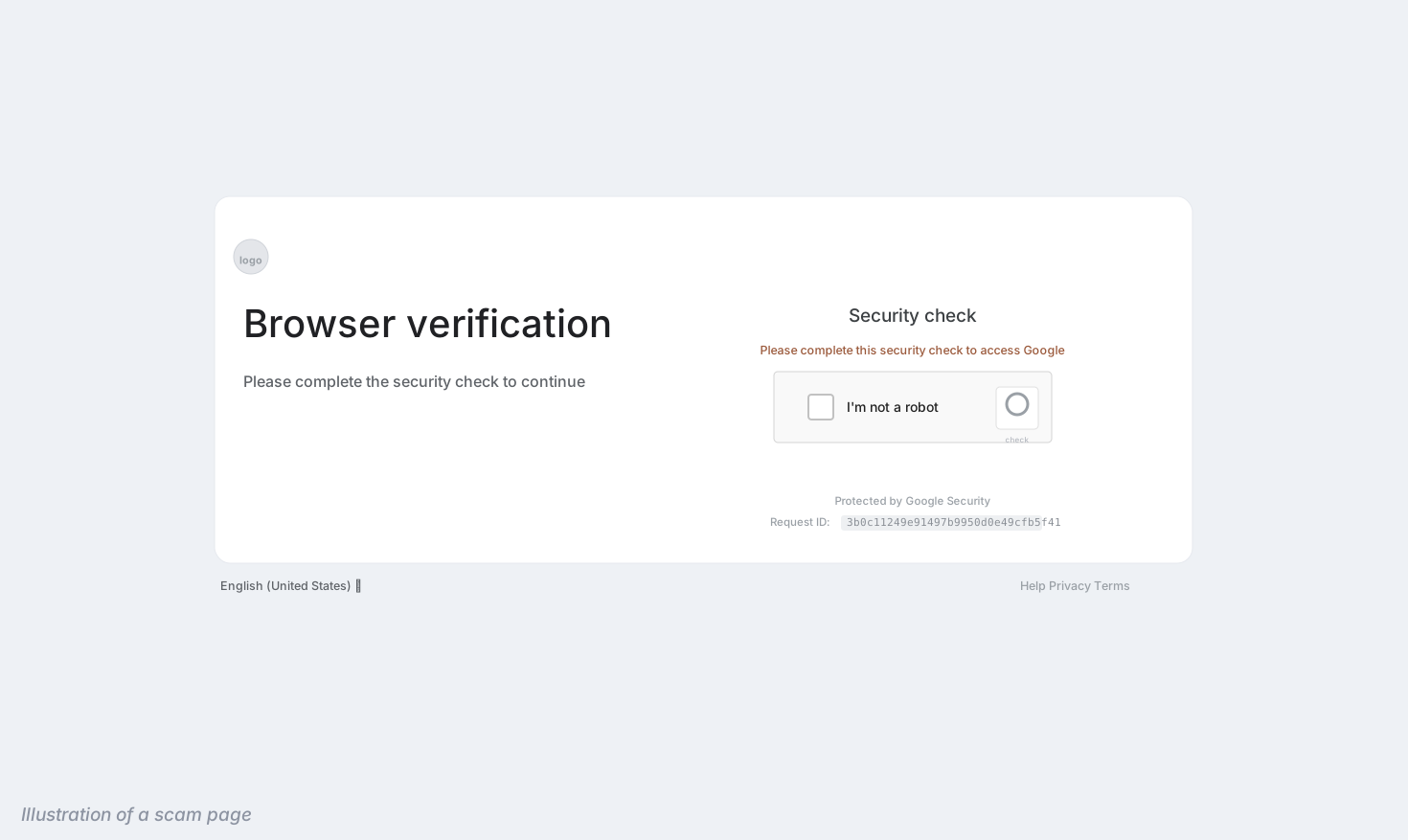
- A step Google doesn't use. Google doesn't put a standalone "browser verification" wall in front of signing in. The step is invented, and its calm, official tone is exactly what makes it convincing.
- A verification box doing two jobs. A challenge like this makes the page feel like a genuine security system. It also helps the page hide from automated scanners, which generally can't click through a human-verification step to reach the fake login behind it.
- An official-sounding label. There is no Google product called "Google Security" that gates sign-ins this way. The words are there only to reassure you.
- A reference number that refers to nothing. The "Request ID" is a random-looking string made to look official, the same trick as the invented error codes and session IDs on other scam pages.
Before the fake sign-in even appears, the visitor meets this. A page like it is a small touch that does a lot of work. To you, it reads as proof the page is careful about security, which lowers your guard at the exact moment it should be up. To the automated tools that hunt for scam pages, it's a locked door: a scanner that can't tick the box never sees the fake login waiting on the other side. Fake "verification" and CAPTCHA screens like this have become a common front for phishing pages for both of those reasons.
Here, it was the first thing the page showed, before any sign-in: a gate the visitor had to clear to reach the copy waiting behind it. A real Google sign-in doesn't open with a screen like this. If an unexpected "verification" or "security check" stands between you and your account, that's a reason to stop and check the address, not a reason to trust the page.
Stage two: a pixel-perfect copy of the sign-in page
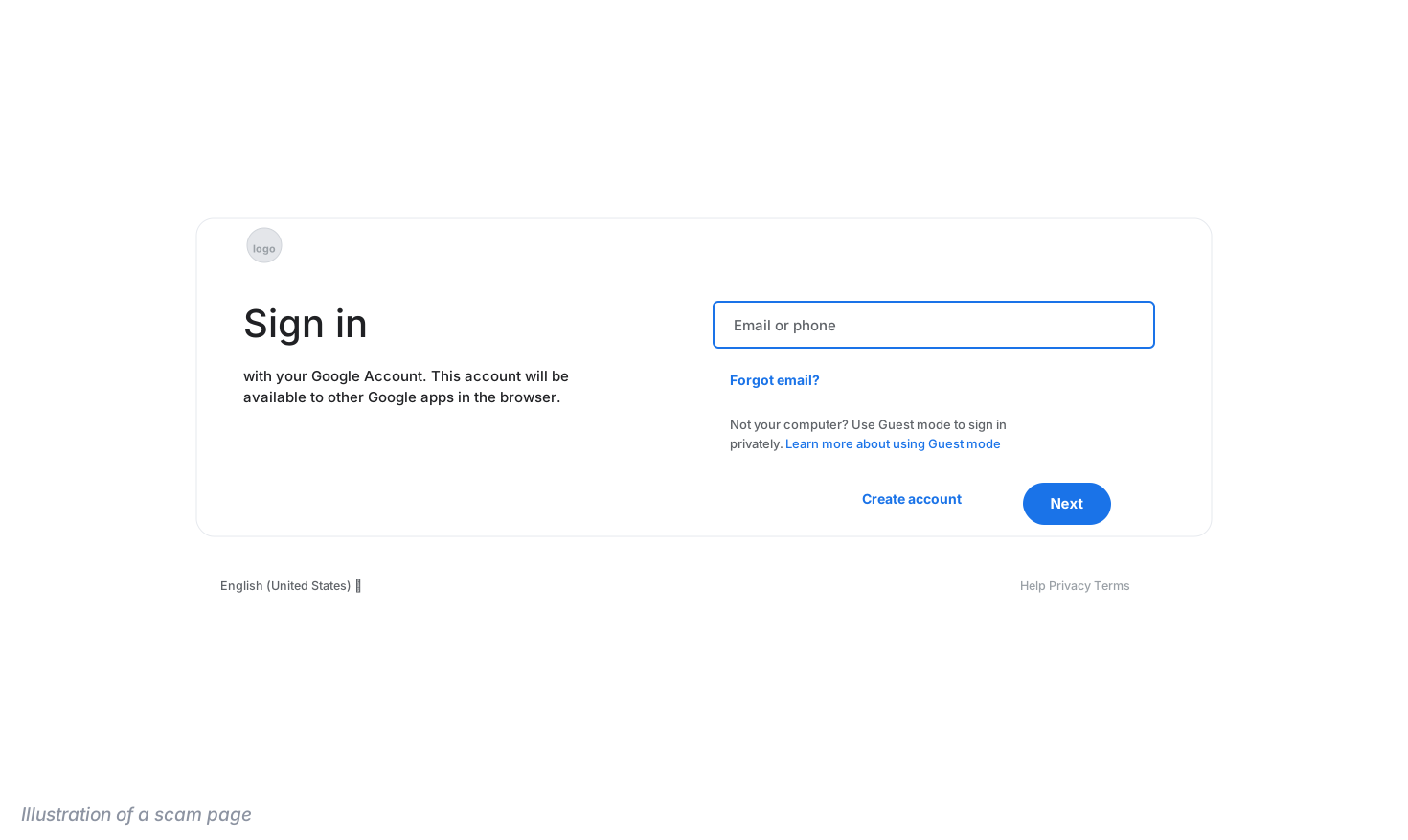
- The logo. On the live page, Google's real logo sat here; our illustration leaves a plain placeholder. On a copied page the logo is lifted straight from Google, so it looks exactly right and tells you nothing about whether the page is real. Only the web address can.
- A faithful sign-in box. The field, the "Forgot email?" link, the layout, even the guest-mode note are all copied, and they all behave normally. The one thing that would give the page away is the address bar, which isn't shown here, which is the point.
- One job: move you along. Typing an email and pressing Next doesn't sign you in to anything. It just carries you to the password step. This page is a funnel, and the next screen is where the password is taken.
There is almost nothing wrong with this page, and that's what makes it work. It isn't clumsy, it isn't misspelled, and it doesn't rush you. It looks like Google's sign-in because it is Google's sign-in, copied. The usual advice for spotting a fake, like watching for odd logos or broken English, doesn't help here, because there's nothing odd to see. The only reliable tell isn't on the page at all: the web address.
Stage three: the password page, where the theft happens
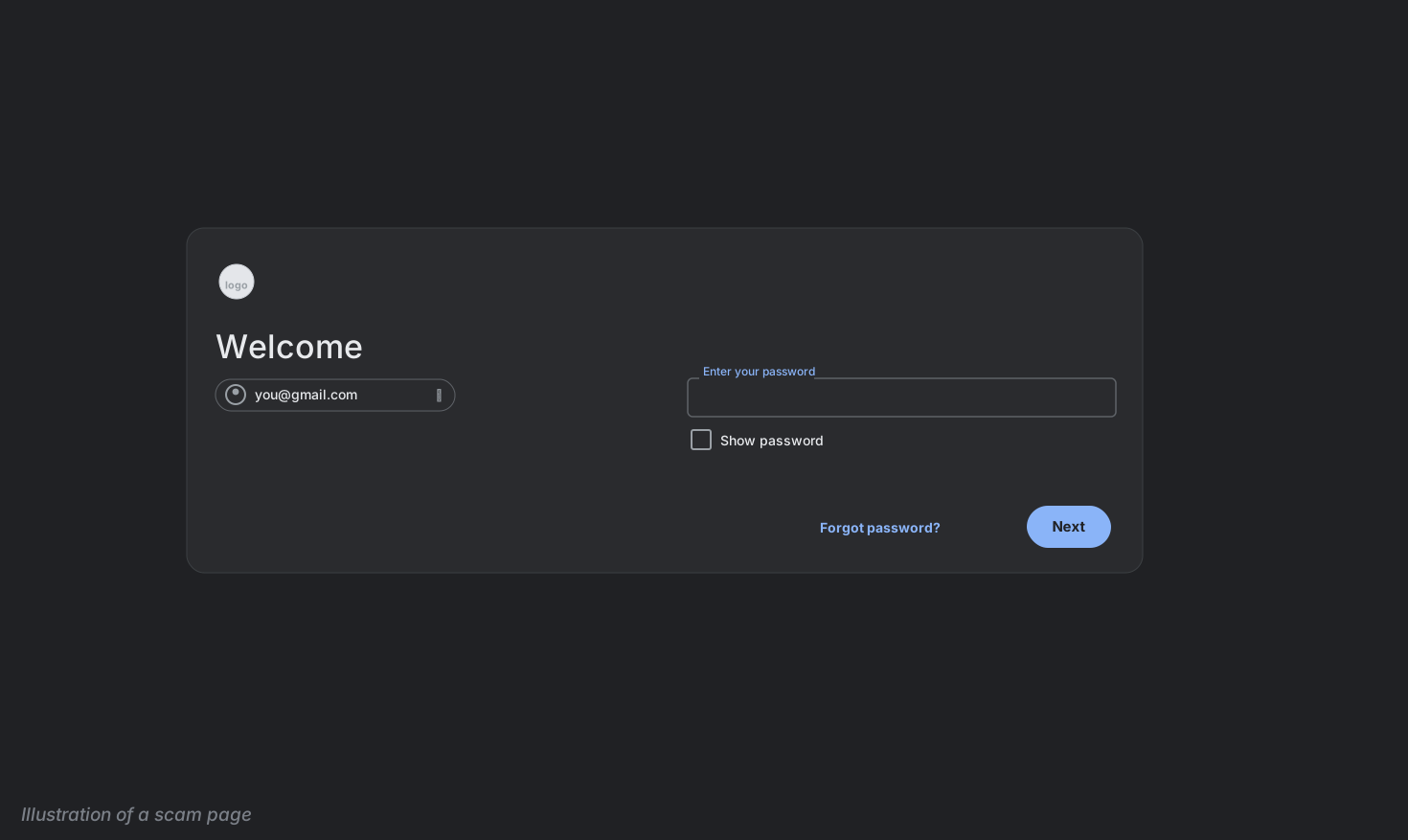
- A different look from the step before. The sign-in page was white; this one is black. A real Google sign-in doesn't switch from a light page to a dark one partway through. A mismatch like this between steps is a sign the pages were stitched together from different parts.
- Your email, already filled in. The address was carried over from the link or the previous step, so the page looks like it recognizes you. Seeing your own address makes the page feel personal and trustworthy. It is neither. (The address shown here is a placeholder.)
- The password box. This is the whole purpose of the operation. Anything typed here goes to the people running the page, not to Google. The copy can't check whether your password is correct, and it doesn't need to. It only needs to receive it.
- Next, and it's gone. Pressing Next sends the password to the people running the page. From here the copy has what it came for; it may simply forward you to the real Google so that nothing seems wrong.
This is the page that matters. For most people, a Google password is the master key: it opens email, and email is where password resets for everything else are sent. Someone who has it can often reach your cloud files, your photos, your contacts, and any account that uses your Gmail to recover a login. That's why Google's sign-in is such a common thing to copy, and why the one box on this page is worth more to an attacker than a card number.
Notice that nothing on this page warns you or hurries you. It doesn't need to. It just asks for the password you came to type, in a box that looks exactly right.
Google isn't the only login worth stealing. In the same stretch of weeks, our team flagged a copy of a very different sign-in that works in exactly the same way.
The same trick, a different logo
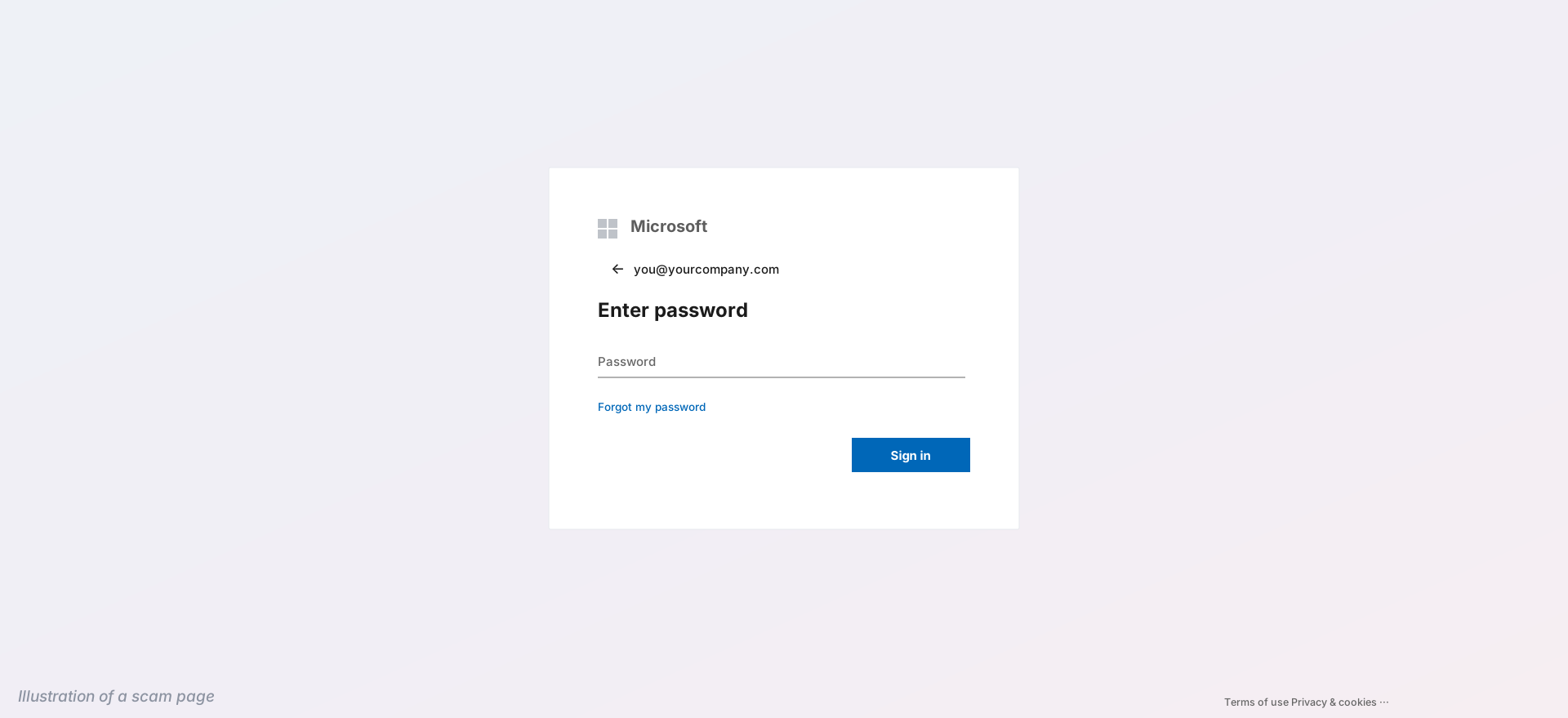
- A faithful copy, background and all. On the live page the real Microsoft logo and the familiar background were copied from the sign-in; our illustration shows plain placeholders instead. As with the Google pages, none of it can tell you whether you've really reached Microsoft. Only the address can.
- A work address, already filled in. The page opens on the password step with the account name in place, carried from the link that led here. It's an organization's Microsoft 365 address, the kind of account these copies are built to catch. (The address shown is a placeholder.)
- The password box. The one thing the page exists to collect. Whatever is typed here goes to the operators, not to Microsoft. A work password often opens one organization's email, files, and chat at once, which is what makes it worth copying.
This is a different brand and a different-looking page, but it's the same scheme: a faithful copy of a trusted sign-in, opened straight to the password step, built to receive what you type. A real Microsoft work or school sign-in is completed at login.microsoftonline.com (personal accounts finish at login.live.com). The copy can match everything you can see, but it can't be hosted at those addresses. Microsoft's own advice is the same as Google's and ours: don't trust the design, check the address, and if a message sent you there, open the service yourself instead.
Work accounts are a favorite target because one password can open a whole organization. For the same reason, a stolen work password plus a one-time code captured in the moment can be enough to get in, which is why many organizations are moving to passkeys and security keys that a fake page can't collect.
What these pages have in common
These copies borrowed Google and Microsoft, but the same handful of tells show up on copies of any login page. Once you know them, you'll recognize the next one no matter whose logo it wears.
- Everything looks right. The logo, the layout, the wording, and the links are copied from the real site, so they all look and behave correctly. On a copied page, "it looks legitimate" is not evidence of anything. The real test is the web address.
- You arrived by a link. These pages reach people through a link in an email or text, an e-card or invitation, an ad, or a search result, so you land on the login without ever typing the address yourself. If you didn't type the address, you don't yet know where you are.
- The address bar is the one thing that can't be faked. A copy can match everything on the page, but it can't be hosted at the real address. Google's sign-in is always accounts.google.com; Microsoft's work and school sign-in is login.microsoftonline.com. Read the whole address; a copy may slip the brand name into it somewhere, or use a close lookalike, but it won't be the real one.
- Your password manager stays quiet. A password manager fills your password only on the real site's exact address. On a copied page at the wrong address, it simply won't offer. That silence is one of the most reliable signs a page is fake.
- Small inconsistencies between steps. A theme that flips from light to dark, spacing that shifts, a control that looks slightly off. Copies are stitched together, and the seams sometimes show.
How to sign in safely
- Reach sign-in yourself. Open the app or type the address, or use a bookmark you saved. Don't sign in through a link in an email, text, ad, or search result. If a message claims there's a problem with your account, go to your account yourself and check there.
- Check the address before you type your password. Make it a habit at the password step. Google's sign-in is always at accounts.google.com, and Microsoft's work sign-in at login.microsoftonline.com. It takes two seconds and works no matter how good the copy is.
- Let a password manager fill it in. Because it ties each password to the exact site, it won't offer your password on a fake page, and that refusal is a warning worth trusting. Chrome's Password Alert can also tell you if you type your Google password on a non-Google site.
- Add a passkey or turn on 2-Step Verification. A passkey is tied to the real site and won't work on a copy, so it can't be handed to a fake page the way a password can. Google and Microsoft are both moving people to passkeys for exactly this reason. If you use a code instead, an app prompt or a security key is stronger than a text message.
If you already entered your password
It happens, and it doesn't mean you were careless. These pages copy the real sign-in so closely that the difference is often invisible. What matters is acting quickly.
- Change that password now, from a device you trust. How you do it depends on the account. Google account: run Google's Security Checkup to change the password and review access. Personal Microsoft account (outlook.com, hotmail.com, live.com): sign in at account.microsoft.com, open Security, and choose Change password. Work or school account (Microsoft 365): change it at myaccount.microsoft.com under Change password, and tell your IT team right away so they can reset it and sign every session out.
- Sign out everywhere and review your devices. In your account's security settings, sign out of sessions you don't recognize and remove unfamiliar devices.
- Check what may have been changed. Look at your recovery email and phone number, and any mail filters or forwarding rules. Attackers often add their own recovery details or a quiet forwarding rule to keep access after you change the password.
- Turn on a passkey or 2-Step Verification if you haven't. Some copied pages relay what you type to the real site as you type it, which can capture a one-time code too, so a passkey or security key is the stronger protection.
- Change that password anywhere else you used it, and expect follow-up messages. Be wary of emails or texts about "unusual activity" or account problems, and don't click their links.
- Report it. In the U.S., you can report phishing to the FTC at ReportFraud.ftc.gov and to the FBI's Internet Crime Complaint Center at ic3.gov. You can also report the page to Google or Microsoft.
Why this is happening
How credential harvesting works
None of this is new. Copying a login page to collect passwords is one of the oldest tricks online, and it has a name: phishing. What's changed is how convincing the copies are and how quickly they can be made and replaced. A page that used to take real effort to build can now be produced in minutes and swapped for a new one as soon as the old one is blocked.
The mechanics are simple. A copied login page is just a web page with a form on it. Whatever you type into that form is sent to whoever built the page, instead of to the company whose login it imitates. The copied logo, the familiar layout, and touches like the fake "security check" are all there to make typing feel safe. Once a password is submitted, it belongs to the operators. They may use it, sell it, or try it on your other accounts, since many people reuse passwords.
The cost, by the numbers
Fake login pages feed the most frequently reported kind of internet crime in the United States. The FBI's Internet Crime Complaint Center counts these cases under "phishing and spoofing," and in 2025 they topped the list by a wide margin.
- 191,561
- phishing and spoofing complaints reported to the FBI in 2025, the most of any crime type, and more than double the next most reported
- $215.8 million
- reported lost to phishing and spoofing in 2025, roughly triple the figure reported a year earlier
Source: FBI Internet Crime Complaint Center, 2025 Internet Crime Report. Figures reflect only losses reported to the FBI.
Those figures almost certainly understate the harm. A stolen password rarely causes a loss on its own; the damage comes later, when the account is used to reach money, send fraud to your contacts, or unlock other services, and those losses get counted under different categories. The theft starts on a page like the ones above, in a moment when it could still have been closed.
Why the copies are so convincing now
Login pages like these used to take some effort to put together. The FBI has warned that generative AI reduces the time and effort criminals need to deceive their targets, and lists generating content for fraudulent websites among the ways criminals use it. For fake logins, that means a polished copy, built fast, and rebuilt just as fast when it's taken down. The FBI began counting AI's role for the first time this year.
- 22,364
- complaints involving AI reported to the FBI in 2025, the first year it tracked them
- $893 million
- in reported losses from those complaints
Source: FBI Internet Crime Complaint Center, 2025 Internet Crime Report. Figures reflect only losses reported to the FBI.
It's worth being clear about what AI changes and what it doesn't. It makes these pages cheaper to produce and more polished, but the trick underneath is the same one phishing has always used: put a familiar login in front of someone and wait for them to type. The tells in this post work no matter how a page was built.
Why a password alone can't protect you
This is the strongest reason to move beyond passwords. A password is a secret you can be talked into typing on the wrong page, and once you do, it's gone. A passkey can't be. It's tied to the real site's address, so your device won't offer it to a copy, and there's no secret for you to hand over by mistake. Even if an attacker captures a one-time code in real time, a passkey or a physical security key gives them nothing to replay. Google and Microsoft have both been pushing passkeys precisely because they take the phishing page out of the equation.
Protection built for pages like these
A blocklist can only protect you from a page someone has already found, reported, and confirmed. A copied login is designed to look like a site that's already trusted, and when one is blocked, its operators can put up another in minutes. Every new copy gets a head start: the time between going live and landing on a list. A fake "verification" step, like the one in this flow, is built to stretch that head start by keeping automated scanners out.
ASURViO Shield is designed for that gap. Instead of relying only on lists of known bad sites, it checks each page as it loads, so a login page copied this morning gets the same scrutiny as one that has been around for months. That's how it flagged the pages above.
Threat notes
Protection for a new era of scams
This report is part of Threat notes, our ongoing research into new scams. As scammers keep adopting AI, we'll keep publishing what we find, because recognizing these pages protects people whether or not they use Shield.
About this report
- About the authors
- We are the research team behind ASURViO Shield. Read more about our team.
- About the illustrations
- The images in this report are illustrations recreated from real credential-harvesting pages our team detected in recent weeks, impersonating Google and Microsoft (the pages were captured when they were detected). They reproduce each page's layout and wording closely enough to show its red flags. Logos are not reproduced, and the account addresses shown are placeholders, not real ones.
- Sources
-
- FBI Internet Crime Complaint Center, 2025 Internet Crime Report (published April 2026)
- FBI Internet Crime Complaint Center, Criminals Use Generative Artificial Intelligence to Facilitate Financial Fraud (public service announcement, December 2024)
- Google, Avoid and report phishing emails
- Google, Make your account more secure
- Google, Sign in with a passkey instead of a password
- Microsoft, Protect yourself from phishing
- Microsoft, Change your Microsoft account password, and Change your work or school account password
- A note on brands
- Google and Microsoft are shown because these pages impersonate them. Neither company is affiliated with these pages or with this report.